
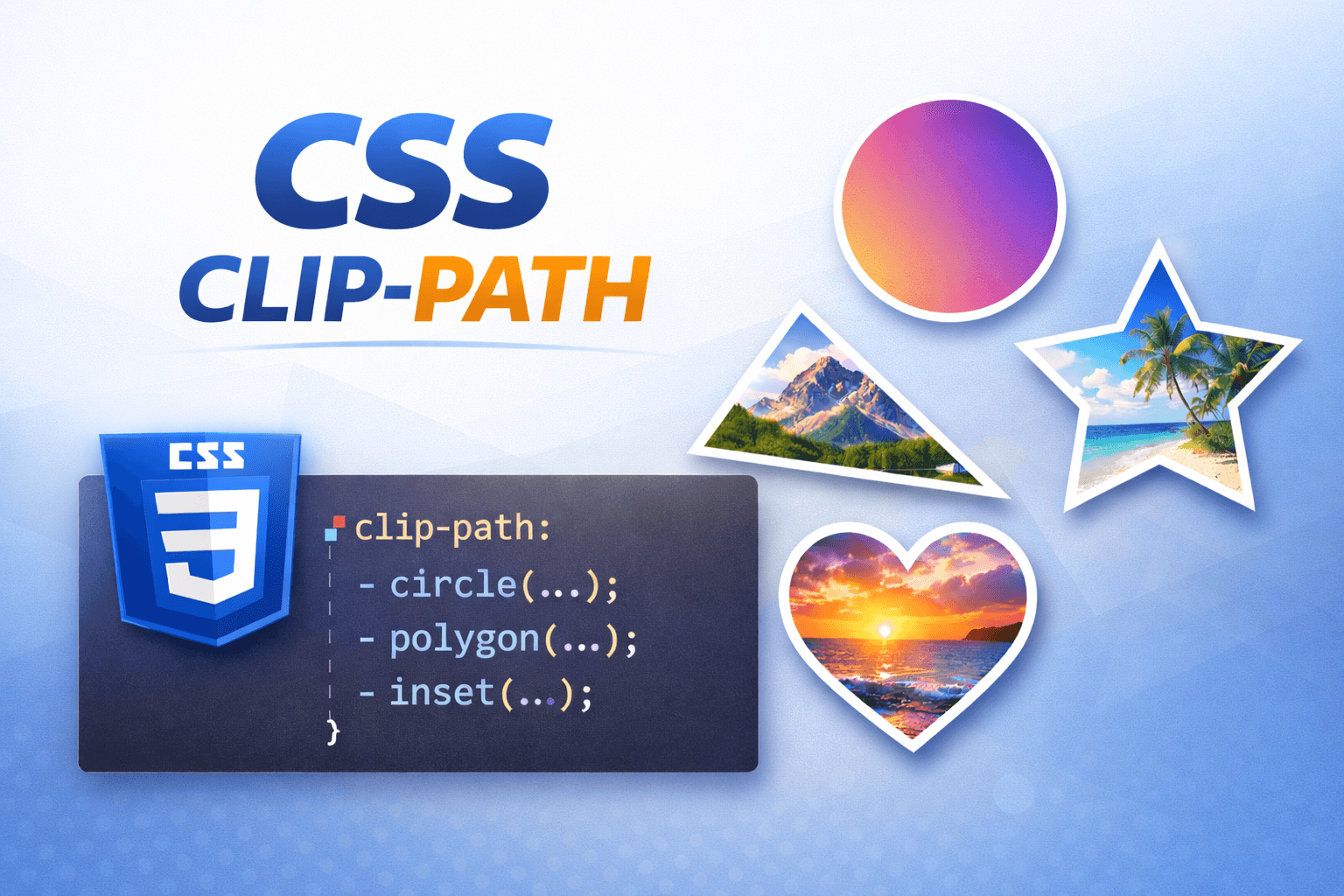
Master CSS Clip-Path - A Complete Beginner's Guide to Clipping Shapes
Learn how to create stunning custom shapes and visual effects using CSS clip-path. A comprehensive guide with practical examples for beginners.
CSS clip-path is one of those properties that feels like magic when you first discover it. It allows you to clip elements into custom shapes, creating visually stunning effects that were once only possible with image editing software. In this comprehensive guide, I'll walk you through everything you need to know about clip-path, from the basics to advanced techniques.
What is CSS Clip-Path?
Think of clip-path as a pair of scissors for your HTML elements. It lets you define a visible region of an element, hiding everything outside that region. Unlike border-radius which only creates rounded corners, clip-path can create virtually any shape you can imagine — triangles, hexagons, stars, custom polygons, and more.
Understanding Basic Clip-Path Shapes
Let's start with the simplest shapes. CSS clip-path supports several built-in shape functions that are perfect for beginners.
<!-- index.html -->
<!DOCTYPE html>
<html lang="en">
<head>
  <meta charset="UTF-8">
  <meta name="viewport" content="width=device-width, initial-scale=1.0">
  <title>CSS Clip-Path Guide</title>
  <link rel="stylesheet" href="styles.css">
</head>
<body>
  <div class="container">
    <div class="box circle">Circle</div>
    <div class="box ellipse">Ellipse</div>
    <div class="box inset">Inset</div>
  </div>
</body>
</html>
/* styles.css */
.container {
display: flex;
gap: 2rem;
padding: 2rem;
flex-wrap: wrap;
}
.box {
width: 200px;
height: 200px;
background: linear-gradient(135deg, #667eea 0%, #764ba2 100%);
display: flex;
align-items: center;
justify-content: center;
color: white;
font-size: 1.5rem;
font-weight: bold;
}
/* Circle shape */
.circle {
clip-path: circle(50%);
}
/* Ellipse shape */
.ellipse {
clip-path: ellipse(50% 40%);
}
/* Inset (rectangle with optional rounded corners) */
.inset {
clip-path: inset(10px 20px 30px 40px round 20px);
}Here's what each shape function does:
- circle() - Creates a circular clip. The parameter is the radius (50% means it uses half the element's size)
- ellipse() - Creates an oval shape. Takes two parameters for horizontal and vertical radius
- inset() - Creates a rectangular shape with optional rounded corners. Parameters work like padding (top, right, bottom, left)
Creating Polygons - The Real Power of Clip-Path
While circles and ellipses are nice, polygon() is where clip-path truly shines. With polygon, you can create any multi-sided shape by defining coordinate points.
Understanding the Coordinate System
Before we dive in, let's understand how coordinates work:
- The top-left corner of your element is
0% 0% - The top-right corner is
100% 0% - The bottom-left corner is
0% 100% - The bottom-right corner is
100% 100% - The center is
50% 50%
You can also use pixel values instead of percentages!
<!-- Add these to your HTML -->
<div class="container">
  <div class="box triangle">Triangle</div>
  <div class="box hexagon">Hexagon</div>
  <div class="box star">Star</div>
  <div class="box arrow">Arrow</div>
</div>
/* Triangle - three points */
.triangle {
clip-path: polygon(50% 0%, 0% 100%, 100% 100%);
background: linear-gradient(135deg, #f093fb 0%, #f5576c 100%);
}
/* Hexagon - six points */
.hexagon {
clip-path: polygon(
50% 0%, /* top point */
100% 25%, /* top-right */
100% 75%, /* bottom-right */
50% 100%, /* bottom point */
0% 75%, /* bottom-left */
0% 25% /* top-left */
);
background: linear-gradient(135deg, #4facfe 0%, #00f2fe 100%);
}
/* Star - ten points (5 outer, 5 inner) */
.star {
clip-path: polygon(
50% 0%, /* top point */
61% 35%, /* inner point */
98% 35%, /* right upper point */
68% 57%, /* inner point */
79% 91%, /* right lower point */
50% 70%, /* inner point */
21% 91%, /* left lower point */
32% 57%, /* inner point */
2% 35%, /* left upper point */
39% 35% /* inner point */
);
background: linear-gradient(135deg, #fa709a 0%, #fee140 100%);
}
/* Arrow pointing right */
.arrow {
clip-path: polygon(
0% 20%, /* top-left */
60% 20%, /* before arrow point top */
60% 0%, /* arrow point top */
100% 50%, /* arrow tip */
60% 100%, /* arrow point bottom */
60% 80%, /* before arrow point bottom */
0% 80% /* bottom-left */
);
background: linear-gradient(135deg, #ffecd2 0%, #fcb69f 100%);
}Animating Clip-Path for Dynamic Effects
One of the most exciting features of clip-path is that it's animatable! You can create smooth transitions between different shapes. The key is that both shapes must have the same number of points.
<div class="container">
  <div class="box animated-shape">Hover Me!</div>
  <div class="box morph">Morph</div>
  <div class="box reveal">Reveal Effect</div>
</div>
/* Simple shape transition */
.animated-shape {
clip-path: polygon(0% 0%, 100% 0%, 100% 100%, 0% 100%);
background: linear-gradient(135deg, #667eea 0%, #764ba2 100%);
transition: clip-path 0.5s ease-in-out;
}
.animated-shape:hover {
clip-path: polygon(50% 0%, 100% 50%, 50% 100%, 0% 50%);
}
/* Morphing effect */
.morph {
clip-path: polygon(
50% 0%, 100% 38%, 82% 100%, 18% 100%, 0% 38%
);
background: linear-gradient(135deg, #f093fb 0%, #f5576c 100%);
transition: clip-path 0.6s cubic-bezier(0.68, -0.55, 0.265, 1.55);
}
.morph:hover {
clip-path: polygon(
20% 0%, 80% 0%, 100% 100%, 0% 100%, 0% 0%
);
}
/* Reveal animation */
.reveal {
clip-path: inset(0 100% 0 0);
background: linear-gradient(135deg, #4facfe 0%, #00f2fe 100%);
animation: revealAnimation 2s ease-in-out infinite;
}
@keyframes revealAnimation {
0%, 100% {
clip-path: inset(0 100% 0 0);
}
50% {
clip-path: inset(0 0 0 0);
}
}Step 4: Practical Use Case - Image Masking Gallery
Now let's look at a practical application where clip-path really shines. Image masking is one of the most popular uses of clip-path, allowing you to create unique image galleries with custom shapes.
<div class="image-gallery">
  <div class="image-wrapper hexagon-image">
    <img src="your-image.jpg" alt="Hexagon masked image">
  </div>
  <div class="image-wrapper circle-image">
    <img src="your-image.jpg" alt="Circle masked image">
  </div>
  <div class="image-wrapper diagonal-image">
    <img src="your-image.jpg" alt="Diagonal masked image">
  </div>
</div>
.image-gallery {
display: flex;
gap: 2rem;
padding: 2rem;
flex-wrap: wrap;
}
.image-wrapper {
width: 300px;
height: 300px;
overflow: hidden;
transition: transform 0.3s ease;
}
.image-wrapper:hover {
transform: scale(1.05);
}
.image-wrapper img {
width: 100%;
height: 100%;
object-fit: cover;
}
/* Hexagon shape for first image */
.hexagon-image img {
clip-path: polygon(
50% 0%, 100% 25%, 100% 75%, 50% 100%, 0% 75%, 0% 25%
);
}
/* Circle shape for second image */
.circle-image img {
clip-path: circle(50%);
}
/* Diagonal cut for third image */
.diagonal-image img {
clip-path: polygon(0 0, 100% 0, 100% 80%, 0 100%);
}This creates a visually striking gallery where each image has a unique shape. The hover effect adds interactivity, and you can easily extend this pattern to create entire portfolios or product showcases with distinctive visual appeal.
Advanced Techniques and Tips
Using SVG Paths for Complex Shapes
For extremely complex shapes, you can reference an SVG path:
<svg width="0" height="0">
  <defs>
    <clipPath id="myClip" clipPathUnits="objectBoundingBox">
      <path d="M0.5,0 C0.7,0 0.9,0.2 1,0.5 C0.9,0.8 0.7,1 0.5,1 C0.3,1 0.1,0.8 0,0.5 C0.1,0.2 0.3,0 0.5,0 Z" />
    </clipPath>
  </defs>
</svg>

<div class="svg-clipped">SVG Clipped Shape</div>
.svg-clipped {
width: 300px;
height: 300px;
background: linear-gradient(135deg, #fa709a 0%, #fee140 100%);
clip-path: url(#myClip);
}Responsive Clip-Path
You can make clip-path responsive by using viewport units or adjusting values at breakpoints:
.responsive-clip {
  clip-path: polygon(
    0 0,
    100% 0,
    100% calc(100% - 10vw),
    0 100%
  );
}

@media (max-width: 768px) {
  .responsive-clip {
    clip-path: polygon(
      0 0,
      100% 0,
      100% calc(100% - 5vw),
      0 100%
    );
  }
}
Performance Tips
- Use percentage values when possible for better scaling
- Avoid too many points in polygons - keep it under 20 for smooth performance
- Use
will-change: clip-pathsparingly for animated elements - Test on mobile devices as clip-path can be performance-intensive
.performance-optimized {
  clip-path: polygon(0 0, 100% 0, 100% 85%, 0 100%);
  will-change: clip-path; /* Only on animated elements */
  transform: translateZ(0); /* Force GPU acceleration */
}
Browser Support and Fallbacks
Clip-path has excellent browser support in modern browsers, but here's how to provide fallbacks:
.with-fallback {
  /* Fallback for older browsers */
  border-radius: 50%;

  /* Modern browsers */
  clip-path: circle(50%);
}

/* Feature detection */
@supports (clip-path: circle(50%)) {
  .with-fallback {
    border-radius: 0; /* Remove fallback if clip-path is supported */
  }
}
Helpful Tools and Resources
Creating complex clip-path values can be tricky. Here are some tools to help:
- Clippy (bennettfeely.com/clippy) - Visual clip-path generator
- CSS Clip-Path Maker - Interactive tool for creating custom shapes
- Browser DevTools - Most modern browsers let you visualize and edit clip-path values
Common Mistakes to Avoid
- Forgetting the closing point: Polygons don't need to repeat the first point at the end
- Using different point counts: When animating, both shapes must have the same number of points
- Overusing clip-path: Use it purposefully - too many clipped elements can hurt performance
- Not considering content: Make sure your content is still readable after clipping
Conclusion
CSS clip-path is an incredibly powerful tool for creating unique designs and engaging user experiences. From simple geometric shapes to complex animations, it opens up a world of creative possibilities without needing external graphics or JavaScript.
Start with basic shapes, experiment with polygons, and gradually work your way up to more complex animations. The key is to understand the coordinate system and practice creating different shapes.
If you found this guide helpful, feel free to share it with others learning CSS! And don't hesitate to experiment - sometimes the best designs come from happy accidents while playing with clip-path values.
Happy clipping! ✂️